Input lag is the delay between pressing a key, moving a mouse, or tapping a controller button and seeing the result on screen. When that delay grows, aiming feels heavy, timing windows become harder to hit, and fast games feel less responsive even when your internet connection is fine. Gaming input lag usually comes from several small delays added together, so you can often improve responsiveness without replacing your entire setup.
Start by separating input lag from network lag
Input lag affects how quickly your own actions appear on screen. Network latency affects how quickly data travels between your system and an online game server. High ping can make opponents jump or actions register late online, but it does not usually make a local menu cursor feel sluggish.
Open an offline game, training mode, or local menu and move the camera quickly. If controls still feel delayed, focus on your display, frame rate, controller, and graphics settings rather than your router.
Use your display’s game or low-latency mode
Televisions often apply image processing for motion smoothing, noise reduction, sharpening, scaling, or cinematic effects. Some of those features increase display lag. If your TV or monitor offers Game Mode, Low Latency Mode, or a similar option, enable it for the HDMI input used by your PC or console.
On compatible consoles and displays, Auto Low Latency Mode may switch the TV into its faster gaming mode automatically. Still, check the display settings yourself because picture presets and HDMI inputs can behave differently.
Make sure the refresh rate is set correctly
A high-refresh-rate display helps only when the system is configured to use it. A 120 Hz, 144 Hz, 165 Hz, or faster monitor running at 60 Hz will not deliver the responsiveness you bought it for. On PC, check Windows display settings and the GPU control panel. On console, verify that 120 Hz output is enabled when both the game and display support it.
Higher refresh rates shorten the time between screen updates, which can make low latency gaming feel more immediate. They do not remove every source of delay, but they reduce an important part of the input-to-display chain.
Prioritize stable frame rate over maximum visual quality
Frame rate and latency are closely connected. If the GPU is overloaded, frames take longer to render and inputs may wait longer before their results appear. Lowering demanding settings can therefore improve responsiveness, especially in competitive games.
Start with options such as ray tracing, heavy shadows, volumetric effects, ambient occlusion, and high resolution scaling. Texture quality is not always a major latency factor if you have enough video memory, so do not automatically reduce every setting to minimum.
For example, imagine a shooter running around 55 to 70 fps on a 144 Hz monitor with the GPU constantly near full load. Lowering a few expensive effects so the game stays closer to 100 fps can make aiming feel tighter even though the monitor and mouse have not changed.
Use built-in low-latency features when available
Some games include dedicated latency-reduction technology. NVIDIA Reflex, for example, is designed to coordinate CPU and GPU work so frames are submitted closer to when they are needed instead of sitting in a render queue. If a supported game offers Reflex or a similar low-latency option, it is worth testing.
On Windows 11, optimizations for windowed games can reduce frame latency in compatible DirectX 10 and DirectX 11 titles running in windowed or borderless modes. That makes older advice claiming exclusive fullscreen is always required less universally applicable.
Be careful with V-Sync, frame generation, and frame caps
Traditional V-Sync can eliminate tearing, but it may add latency because frames can wait for the display’s refresh cycle. Competitive players often use variable refresh rate technologies such as G-SYNC or FreeSync, sometimes with a sensible frame cap, to balance smoothness and response.
Frame generation can make motion look smoother by creating additional frames, but generated frames do not replace the benefit of a strong base frame rate. If response time matters most, compare the feel with frame generation enabled and disabled rather than assuming a higher displayed fps number always means lower latency.
Check the controller, mouse, and USB connection
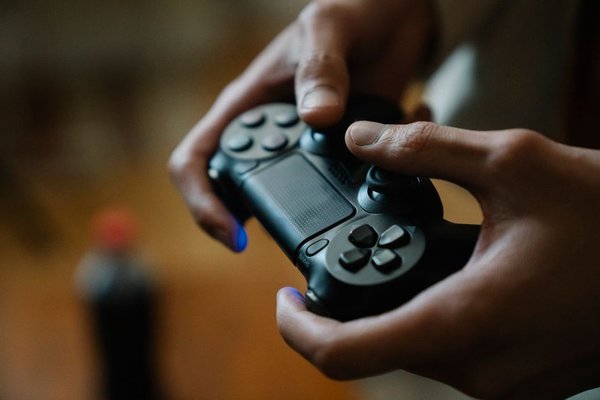
To reduce controller delay, remove avoidable connection problems. Update controller firmware when available, keep wireless receivers away from heavy interference, and test a wired connection if Bluetooth or wireless performance seems inconsistent. Wired is not automatically faster on every device, but it is a useful diagnostic step.
For mice, use a suitable polling rate supported by the device and system. Extremely high polling rates can increase CPU load in some games, so the highest setting is not always best. When troubleshooting, connect gaming peripherals directly to reliable motherboard or console USB ports instead of an overloaded hub.
Reduce background load and power-saving interruptions
Recording tools, browser tabs, overlays, downloads, RGB utilities, and update processes can create frame-time spikes that feel like input delay. Close unnecessary software before testing. On Windows, Game Mode can also help reduce interference from background activity.
On laptops, connect the charger and use an appropriate performance profile. Aggressive power-saving limits can produce unstable frame times even when average fps looks acceptable.
Test one change at a time
Pick a repeatable scene, training range, rhythm sequence, or camera movement and test one variable at a time. Start with display Game Mode, then refresh rate, frame rate, latency options, peripheral connection, and background load. This prevents placebo fixes and shows which part of your setup actually matters.
Useful related topics to explore next include choosing the right gaming monitor, improving PC frame rate, and setting up a gaming controller for consistent performance.
FAQ
Does a higher frame rate always reduce input lag?
A higher frame rate usually improves responsiveness because new frames are produced more frequently, but the result also depends on GPU load, frame pacing, display refresh rate, synchronization settings, and the game engine. A stable high frame rate is more useful than a wildly fluctuating one.
Can a TV cause noticeable gaming input lag?
Yes. TVs may add delay through image processing. Enabling Game Mode or a low-latency preset usually reduces that processing and is one of the first settings console players should check.
Is wired always better than wireless for controller latency?
No. Some modern wireless controllers perform very well, and the difference can be small. A wired connection is still useful for troubleshooting interference, weak batteries, or an unstable wireless link.
Does faster internet reduce input lag?
Faster internet mainly affects online network performance, not the local delay between your input device and screen. If an offline game feels delayed, focus on the display, frame rate, peripherals, and rendering settings first.
Conclusion
Reducing input lag works best when you treat the system as a chain rather than looking for one magic setting. A fast display mode, correct refresh rate, stable frame rate, sensible synchronization settings, responsive peripherals, and lower background load can each remove part of the delay. Test changes in the same game scenario and keep the settings that produce a real improvement in control and consistency.